
Looking for a reliable way to transcribe YouTube videos to text? This guide explains the difference between downloading existing captions and using AI speech-to-text, then compares the best YouTube video transcriber tools by features, pricing, limitations, and ideal users.
Pricing and free-plan details for third-party tools were checked against the source draft in August 2026. Competitor plans, limits, and product features can change, so confirm their current pricing pages before purchasing. TranscribeAudio is completely free to use.
Quick answer: which YouTube transcription tool should you choose?
There is no single best YouTube video transcriber for every job. Start by asking whether you need to extract captions that already exist or generate a new transcript from the audio.
| Your task | Best starting point | Why |
|---|---|---|
| Skim a video or find one quote | YouTube Show transcript | Free, instant, and requires no new account |
| Download existing caption text | DownSub and similar YouTube transcript downloaders | Fast and free, but cannot repair bad captions |
| Transcribe a YouTube video to editable text from a link | TranscribeAudio | Completely free: paste links or upload common audio/video formats, transcribe in 200+ languages, then edit, export, summarize, translate, or ask AI across YouTube, podcasts, lectures, meetings, and social content |
| Transcribe interviews with speaker labels | Otter.ai | Strong meeting workflow and speaker identification, with limited free imports |
| Transcribe YouTube videos in many languages | Happy Scribe | Supports 65+ languages and optional human proofreading |
| Turn a transcript into a finished video | Descript | Editing the transcript edits the video timeline |
| Keep sensitive audio on your computer | MacWhisper | Local processing and offline-friendly workflow on macOS |
| Handle short clips and meeting notes | Notta | Convenient summaries, but the free plan limits each recording to three minutes |
Why you need a reliable YouTube video transcriber in 2026
A 40-minute lecture, interview, or podcast may contain only a few minutes of information you actually need. YouTube transcription turns that content into searchable text, making it easier to research, quote, study, translate, subtitle, and repurpose.
The two ways to transcribe a YouTube video
Method 1: Extract captions that already exist
Caption extractors read uploaded subtitles or YouTube’s automatic captions and convert them into downloadable text. This approach is usually fast and free, but it has a hard boundary: it can only return text that YouTube already has.
That means:
- a video without captions produces no transcript;
- spelling, names, and technical terms that are wrong in the source captions remain wrong;
- speaker labels are usually missing or unreliable;
- automatic captions can suffer from accents, dialects, background noise, silence, and overlapping speakers.
Use caption extraction when the video already has a usable transcript and you mainly need a YouTube transcript download.
Method 2: Run AI speech-to-text on the audio
AI transcription tools analyze the audio itself and generate a new transcript. This is the better route when a YouTube video has no captions, when you need editable text, or when you want features such as speaker detection, chaptering, translation, summaries, and content Q&A.
The trade-off is higher processing cost. AI video transcription services commonly limit free minutes, file length, upload size, languages, exports, or the number of imports.
This distinction is the most important selection decision. A free caption downloader cannot create a transcript for a video that has no captions, while an AI YouTube transcription tool may be unnecessary if all you need is an existing subtitle file.
The main benefits of high-quality video transcription
- Save time: search keywords and jump to timestamps instead of replaying an entire video.
- Reuse content: turn one transcript into a blog post, newsletter, subtitles, study notes, or social clips.
- Improve collaboration: editors and researchers can review text, timestamps, and speaker turns more easily than a video link.
- Expand accessibility: captions and translations help people who are deaf or hard of hearing and viewers who speak other languages.
- Reduce quoting mistakes: review names, numbers, and claims against the audio before publishing.
Free options when a YouTube video already has captions
YouTube’s built-in Show transcript feature
Open a YouTube video, expand the description area, and select Show transcript. The transcript follows playback, and clicking a line jumps to its timestamp. It is ideal for deciding whether a long video is worth watching or finding the moment when a topic appears.
The drawbacks are important. For videos you do not own, you typically have to copy and paste the text yourself. The result may be a wall of timestamped lines with no paragraph breaks or speaker labels, and everything depends on the quality of the original captions.
Use it for quick reading, a short quote, or timestamp discovery. Choose an AI video transcriber when you need a clean, editable document or a transcript from audio with no caption track.
Free YouTube transcript downloaders such as DownSub
DownSub and similar services let you paste a YouTube URL and download existing captions. Some can process an entire playlist in one batch, usually without an account. They are useful as free YouTube transcript downloaders when captions are already available.
Their limitation is built into the method: no caption track means no output. They do not improve automatic captions, reliably identify speakers, or generate an AI summary. Treat them as fast subtitle extractors, not as full speech-to-text systems.
The best YouTube video transcriber tools in 2026
The list below is organized by workflow rather than by unsupported accuracy percentages. A tool that performs well on clean studio audio may behave very differently on a noisy vlog, an accented panel, or a technical lecture.
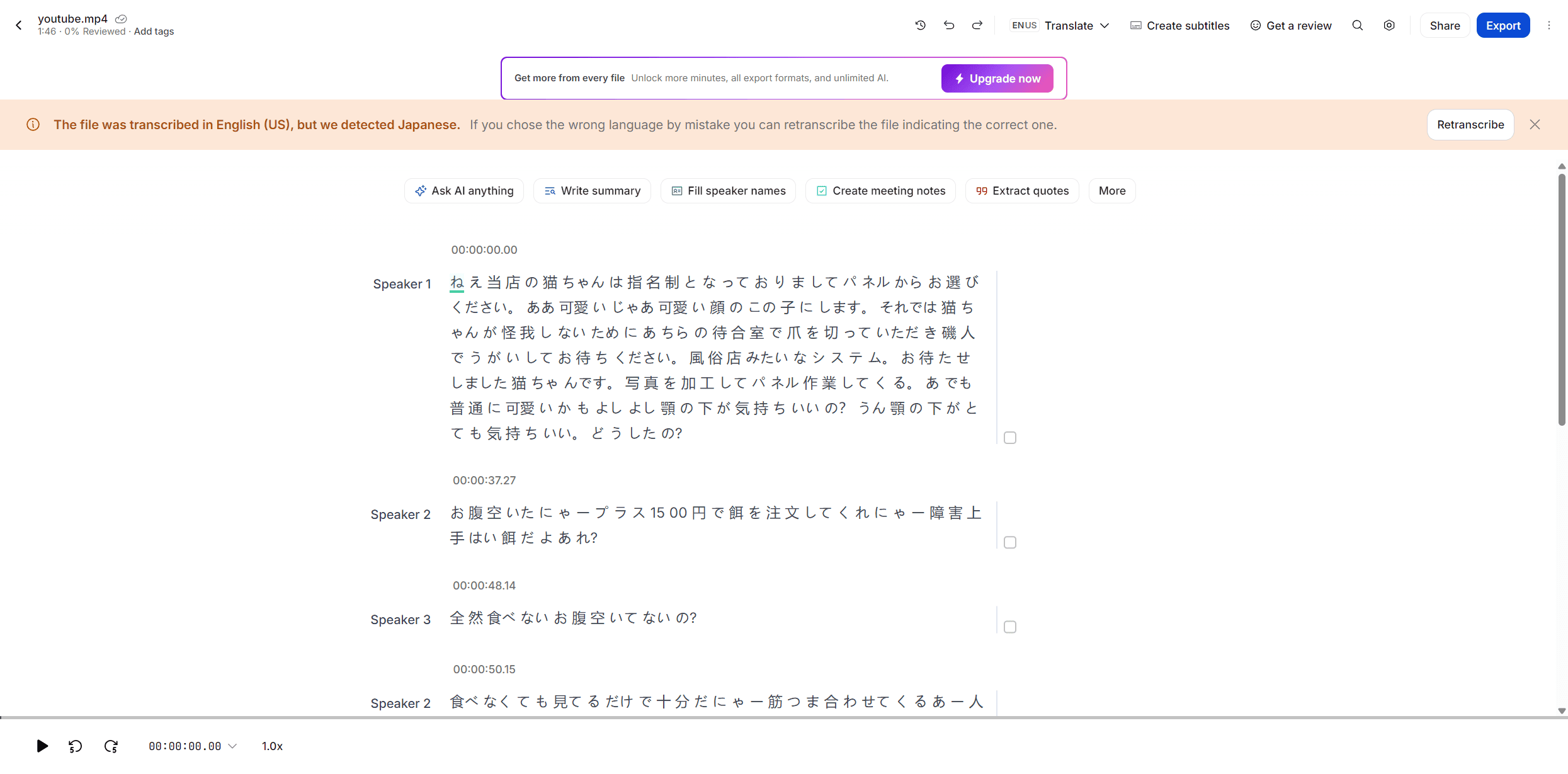
Tool 1: TranscribeAudio — an all-in-one AI YouTube transcription workflow
Key highlights
- Paste a YouTube link or upload an audio/video file;
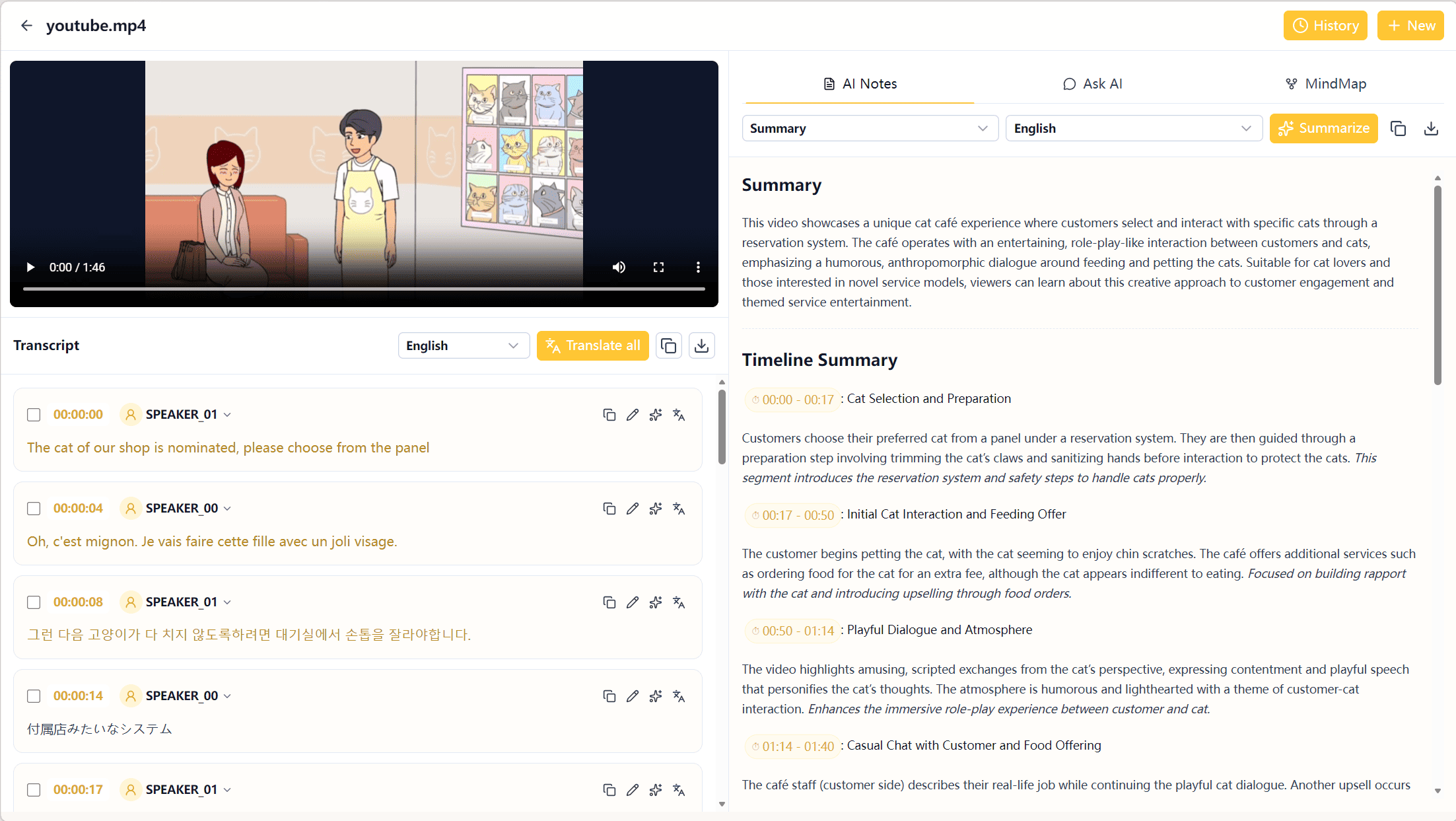
- Generate a timestamped, editable transcript with speaker recognition;
- Work with content from TikTok, Instagram, Facebook, X, Bilibili, and Zoom as well as YouTube;
- Download transcripts as TXT and export mind maps in multiple supported formats;
- Create an AI summary, mind map, and subtitle translation after transcription;
- Ask questions about the transcript with the Ask AI feature;
- Start for free without registration.
Pricing and limits
The TranscribeAudio video transcription tool is completely free to use. It supports files up to 5 GB each, making it suitable for long-form videos and regular content workflows without a subscription or paywall.
Who it is for
TranscribeAudio is a strong fit for researchers, students, journalists, content creators, SEO teams, and anyone who wants one workflow for transcribing YouTube videos to text, correcting the transcript, exporting it, and analyzing the content. It may offer more functionality than necessary if you only need to copy one existing caption line.
What to review
AI-generated text is still a draft. Check names, numbers, brand names, technical vocabulary, and speaker changes before publishing or using a transcript as a formal record.
Tool 2: Otter.ai — speaker identification for interviews and meetings
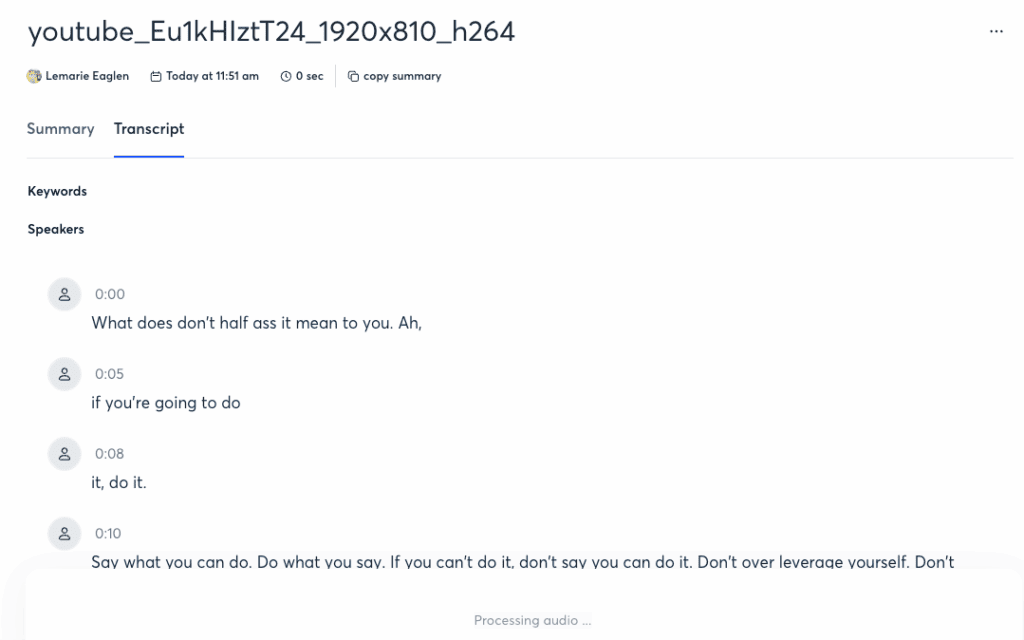
Key highlights: Otter is designed around live meetings and recorded conversations. Its search, notes, and speaker-identification features make it useful for interviews, panels, and podcasts where knowing who said what matters.
Pricing and limits (source draft checked in August 2026): The free plan includes 300 transcription minutes per month, but only three lifetime file imports. If you download YouTube videos and upload them as files, that import cap can become the real limit. Pro costs approximately $8.49 per user per month with annual billing or $16.99 month to month. The plan raises the allowance to 1,200 in-app recording minutes and 10 file imports per month. Confirm the current plan details before subscribing.
Who it is for: English-focused interviewers, meeting-heavy teams, and users who prioritize speaker separation over broad language coverage. Otter generally requires an uploaded audio or video file rather than a pasted YouTube URL.
Tool 3: Happy Scribe — multilingual YouTube transcription with human review
Key highlights: Happy Scribe connects directly to YouTube and Vimeo, supports 65+ languages, and offers both machine transcription and human proofreading. That makes it useful when a multilingual transcript needs a more polished delivery path.
Pricing and limits (source draft checked in August 2026): The Basic plan costs approximately $8.50 per month with annual billing or $17 month to month, including 120 transcription minutes per month. Extra minutes cost about $0.20 per minute. Human proofreading starts at approximately $2 per minute, depending on language and service level. The monthly minute pool may be too small for daily long-form batches unless you purchase additional minutes.
Who it is for: International content teams, translators, course creators, and publishers who need multilingual YouTube transcription and a direct export path. Choose human proofreading when the transcript must be ready for publication or a client deliverable.
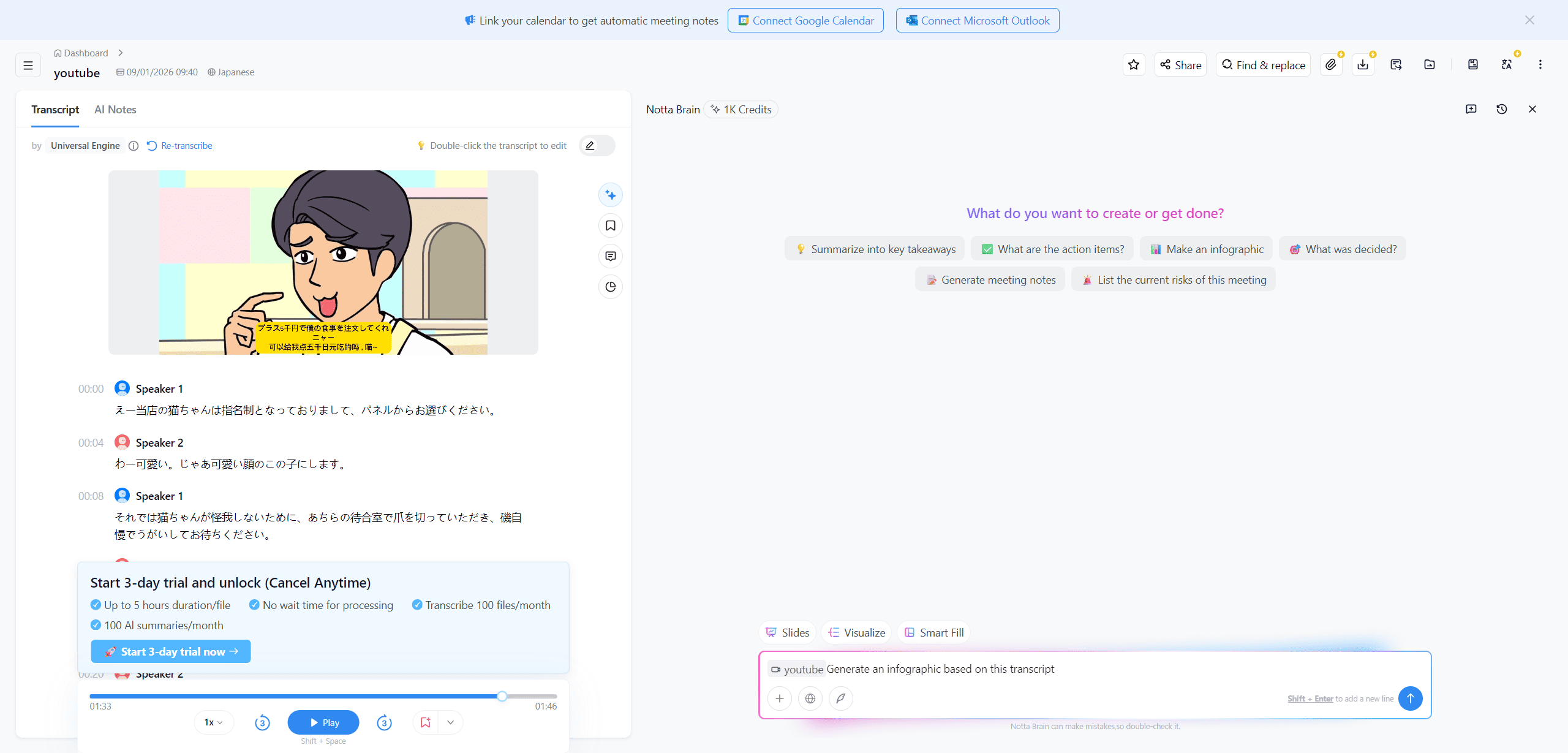
Tool 4: Notta — short recordings and meeting notes
Key highlights: Notta combines transcription, summaries, and meeting notes. It can be convenient for short clips and meeting-style recordings where the transcript is only one part of the note-taking process.
Pricing and limits (source draft checked in August 2026): The free plan advertises 120 minutes per month, but each recording is limited to three minutes. Pro costs approximately $8.17 per month with annual billing, includes 1,800 minutes per month, and supports recordings up to five hours. Translation is a paid add-on rather than a standard included feature. Notta generally relies on uploaded files rather than direct YouTube URL transcription.
Who it is for: Users handling short YouTube clips, quick interviews, and meeting notes. It is a poor free-plan choice for hour-long lectures or podcasts.
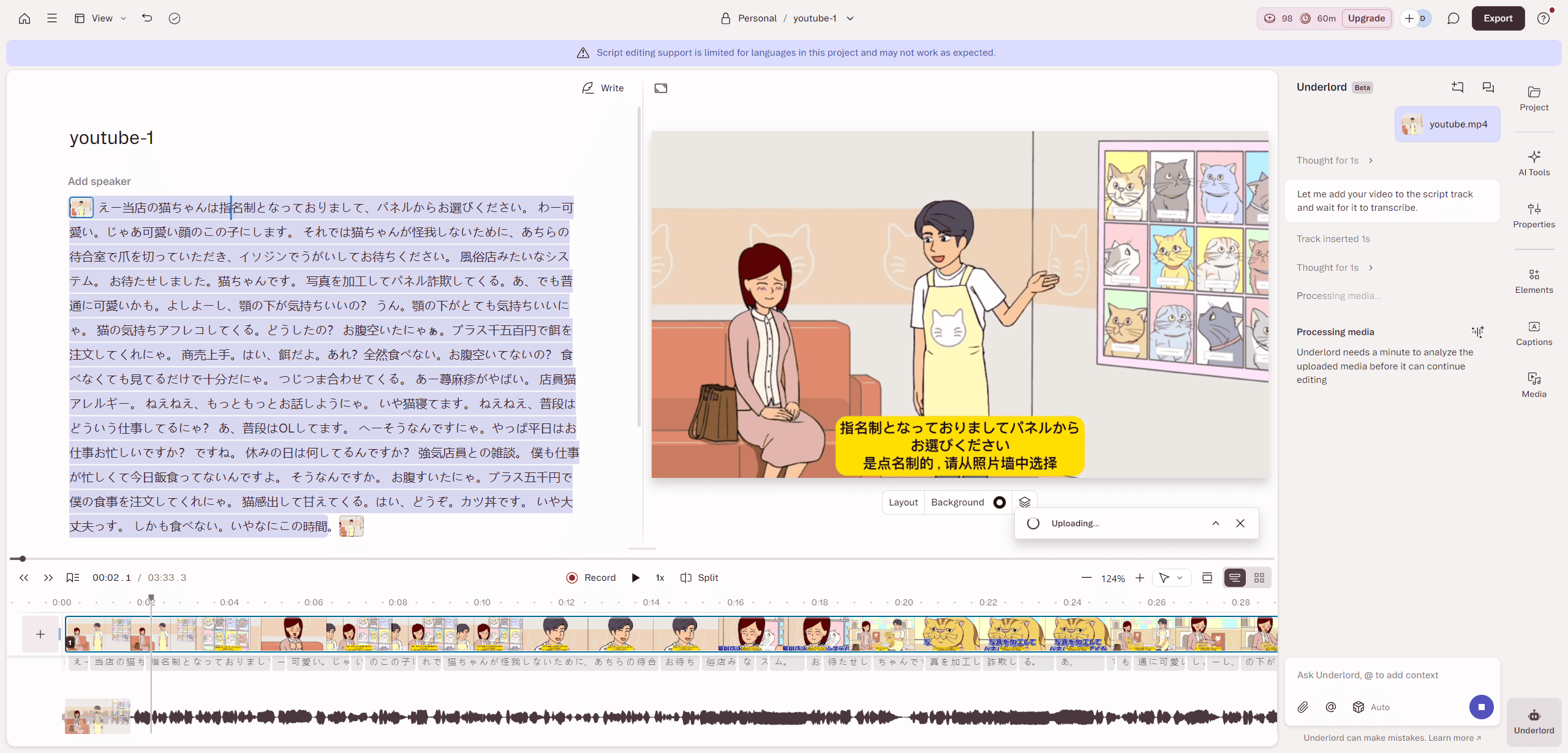
Tool 5: Descript — edit a video by editing its transcript
Key highlights: Descript treats the transcript as a video timeline. Remove a sentence, filler word, or tangent from the text and the underlying video changes with it. This is valuable when YouTube transcription is the first step toward a finished video.
Pricing and limits (source draft checked in August 2026): The free plan includes 60 transcription minutes per month. Hobbyist costs approximately $16 per month with annual billing and includes 10 media hours. Creator costs approximately $24 per month with annual billing and includes 30 media hours plus team features. Transcription supports 25 languages. You normally download the YouTube video before importing it.
Who it is for: Video creators, podcasters, course producers, and editors. Descript can feel excessive if your only goal is a text transcript, and its text-based editing model has a short learning curve.
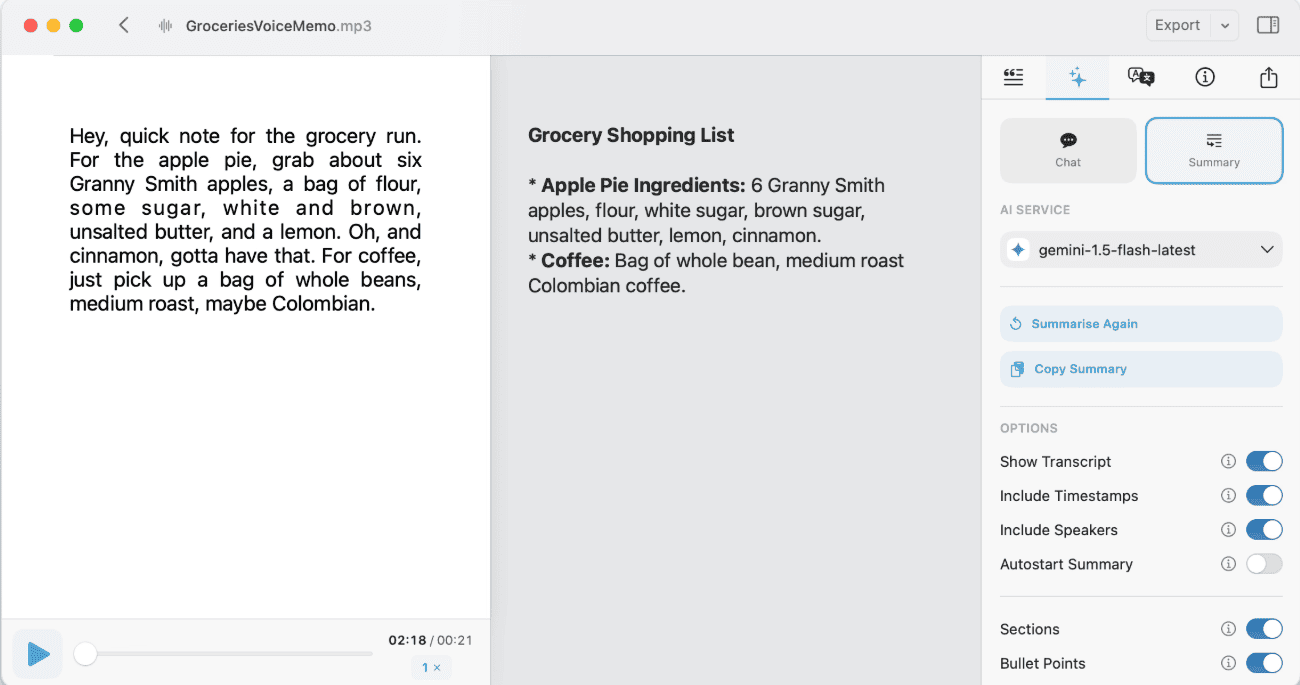
Tool 6: MacWhisper — private, offline AI transcription on Mac
Key highlights: MacWhisper runs transcription locally on a Mac, so audio does not have to be uploaded to a cloud server. It supports 100+ languages, speaker labels, filler-word removal, and exports for subtitles, documents, and structured text.
Pricing and limits: The app is free to download, with an optional one-time Pro upgrade for higher-accuracy models. The source product page did not list a definitive Pro price, so check the current App Store listing. MacWhisper is macOS-only, does not accept a raw YouTube link, and usually requires you to save the video locally first.
Who it is for: Mac users processing client calls, unpublished research, or sensitive interviews who value privacy and offline processing more than one-click URL convenience.
Comparison table
| Tool | Direct YouTube URL | Main strengths | Free access or allowance | Key limitation | Best for |
|---|---|---|---|---|---|
| TranscribeAudio | Yes | Editable transcript, speaker recognition, AI summary, translation, Ask AI | Completely free; files up to 5 GB | 5 GB per file upload limit | End-to-end YouTube transcription workflow |
| Otter.ai | No, upload a file | Meetings, search, speaker identification | 300 min/month; 3 lifetime file imports | English focus and restrictive free imports | Interviews and meetings |
| Happy Scribe | Yes | 65+ languages and human proofreading | 120 min/month | Long batches require paid add-ons | Multilingual or publication-ready work |
| Notta | No, upload a file | Summaries and meeting notes | 120 min/month, but 3 min per recording | Free plan is not suitable for long recordings | Short clips and notes |
| Descript | No, prepare a file | Text-based video editing | 60 min/month | Requires downloading the video; heavier workflow | Editing videos after transcription |
| MacWhisper | No, local file | Offline processing, privacy, 100+ languages | Free app; one-time Pro upgrade | macOS only | Privacy-sensitive Mac workflows |
| YouTube / DownSub | Yes | Free caption extraction | Free when captions exist | Cannot create or correct captions | Quick transcript downloads |
How to choose the right YouTube video transcription tool
Eight factors to check before you choose
- Direct URL support: Can you paste a YouTube link, or must you download and upload the file first?
- Extraction vs. AI transcription: Is the product downloading an existing caption track or running speech-to-text on the audio?
- Language and terminology support: Check the exact language, mixed-language handling, dialect support, and custom vocabulary options.
- Accuracy and editing controls: Search, playback sync, paragraph editing, batch replacement, and speaker labels can matter more than one headline accuracy score.
- Real free-plan boundaries: Look at minutes, per-file duration, upload size, import count, export formats, watermarks, and whether unused minutes roll over.
- Download options: Confirm that the available formats match your research, writing, sharing, or archiving workflow.
- Post-transcription features: Summaries, chapters, mind maps, translation, and transcript Q&A can turn a basic transcriber into a content workspace.
- Privacy and retention: For client or internal material, check storage, deletion, sharing, and model-training policies. Local AI transcription may be the safer choice.
Free vs. paid YouTube transcription tools
Choose free tools when you occasionally need one quote, the video already has good captions, you are downloading a file once, or you are evaluating whether the content is worth deeper research.
Choose paid tools when you process long videos every week, need a transcript with no captions, require multiple languages or speaker labels, collaborate with a team, or rely on batch exports and automated summaries.
Compare total time, not just subscription cost. A free YouTube transcript downloader may save money but still leave you with hours of cleanup. A paid AI transcription service can be cheaper overall when it removes downloading, formatting, and repetitive correction work.
A 30-second accuracy test for AI transcription
Avoid accepting an arbitrary claim such as “96% accurate” without testing the type of audio you actually handle. Accuracy changes with microphones, music, room echo, speaking speed, accents, jargon, and overlapping speech.
Use this repeatable test:
- Cut a one-minute clip that represents your normal YouTube content;
- Run it through each candidate YouTube video transcriber;
- Play the audio beside the transcript and mark missed names, numbers, terminology, omissions, and speaker mistakes;
- Calculate your error rate as incorrect words divided by the total words spoken;
- Compare two or three tools by error rate, editing time, timestamp quality, and export usability.
This is not a universal benchmark. It answers the practical question that matters: does this AI transcription tool work reliably on my content? Repeat the test when a service changes its model.
What to do when a YouTube video has no transcript
First, check whether YouTube has a reason not to show automatic captions. The audio may still be processing, the language may not be supported, the video may be unusually long, the sound may be too poor, the opening may contain a long silence, or multiple speakers and languages may overlap. Live-stream captions can also follow different rules and may not remain after the stream ends.
If you own the video, YouTube Studio lets you replace a weak automatic caption track. If you do not own the video and no captions exist, a free caption extractor cannot help. Use an AI speech-to-text service instead: paste the link into TranscribeAudio or Happy Scribe, upload the file to Otter, Notta, or Descript, or process a saved file locally with MacWhisper on a Mac.
Copyright, privacy, and checks before publishing

Being able to create a transcript does not automatically give you permission to republish it. Personal study, internal research, quotation, public distribution, and commercial reuse may have different copyright implications under local law, the creator’s license, and YouTube’s terms.
Before publishing a transcript, article, subtitle track, course, or commercial adaptation, check:
- whether you have permission to use the video and audio;
- whether quotations are limited to an appropriate amount and credited with the original link;
- whether the transcript exposes personal, customer, or unpublished information;
- whether names, numbers, timestamps, sensitive statements, and paragraph breaks were reviewed by a human.
For confidential files, examine the service’s upload, retention, deletion, and AI-training policies. If the material should not leave your device, choose local AI transcription or remove identifying information before upload.
YouTube transcription FAQ
How accurate are modern AI video transcription tools?
Modern AI transcription is often very useful on clear audio with one speaker, but there is no fixed accuracy rate that applies to every YouTube video. Background music, echo, accents, fast speech, specialist vocabulary, and overlapping speakers can all increase errors. Treat an AI-generated transcript as a first draft and verify important passages against the original audio.
Can a YouTube transcriber handle accents, dialects, and multiple speakers?
Many tools handle common accents, and some offer speaker identification. Results depend on the language model, recording quality, number of speakers, and whether people talk over one another. For interviews and quotations, pay special attention to names, numbers, and who made each statement.
Can I transcribe a YouTube video from a URL?
It depends on the product. TranscribeAudio and Happy Scribe support direct YouTube links. Otter, Notta, Descript, and MacWhisper generally require an uploaded or locally saved file. YouTube’s own transcript panel and DownSub retrieve existing captions rather than generating new speech-to-text.
Which transcript formats can I export?
Download options vary by platform. TranscribeAudio provides transcript text as TXT and offers multiple supported formats for mind maps. Before choosing a tool, check that timestamps and speaker labels remain useful after download.
Is it legal to transcribe YouTube videos?
Technical access and publishing rights are separate questions. Personal learning, research, quotation, full-transcript publication, and commercial reuse can have different requirements. Check the creator’s license, applicable copyright law, and YouTube’s terms. If you plan to publish or monetize a full transcript, get permission and provide clear attribution.
Conclusion: identify the caption situation, then choose the workflow
The best YouTube video transcriber is the one that fits the job in front of you:
- For quick browsing or a timestamp, use YouTube’s built-in transcript;
- For a free download of captions that already exist, use DownSub or a similar extractor;
- For free, editable YouTube transcripts with exports, summaries, and AI insights, choose TranscribeAudio;
- For speaker-heavy English interviews and meetings, consider Otter.ai;
- For multilingual work or optional human review, consider Happy Scribe;
- For transcript-based video editing, choose Descript;
- For private, offline processing on a Mac, choose MacWhisper;
- For short clips and meeting notes, Notta may be convenient.
Before committing to a long video or a batch project, run the one-minute test on your own audio. A small, realistic test is more useful than a generic accuracy percentage—and it helps you choose an AI transcription workflow you can trust.